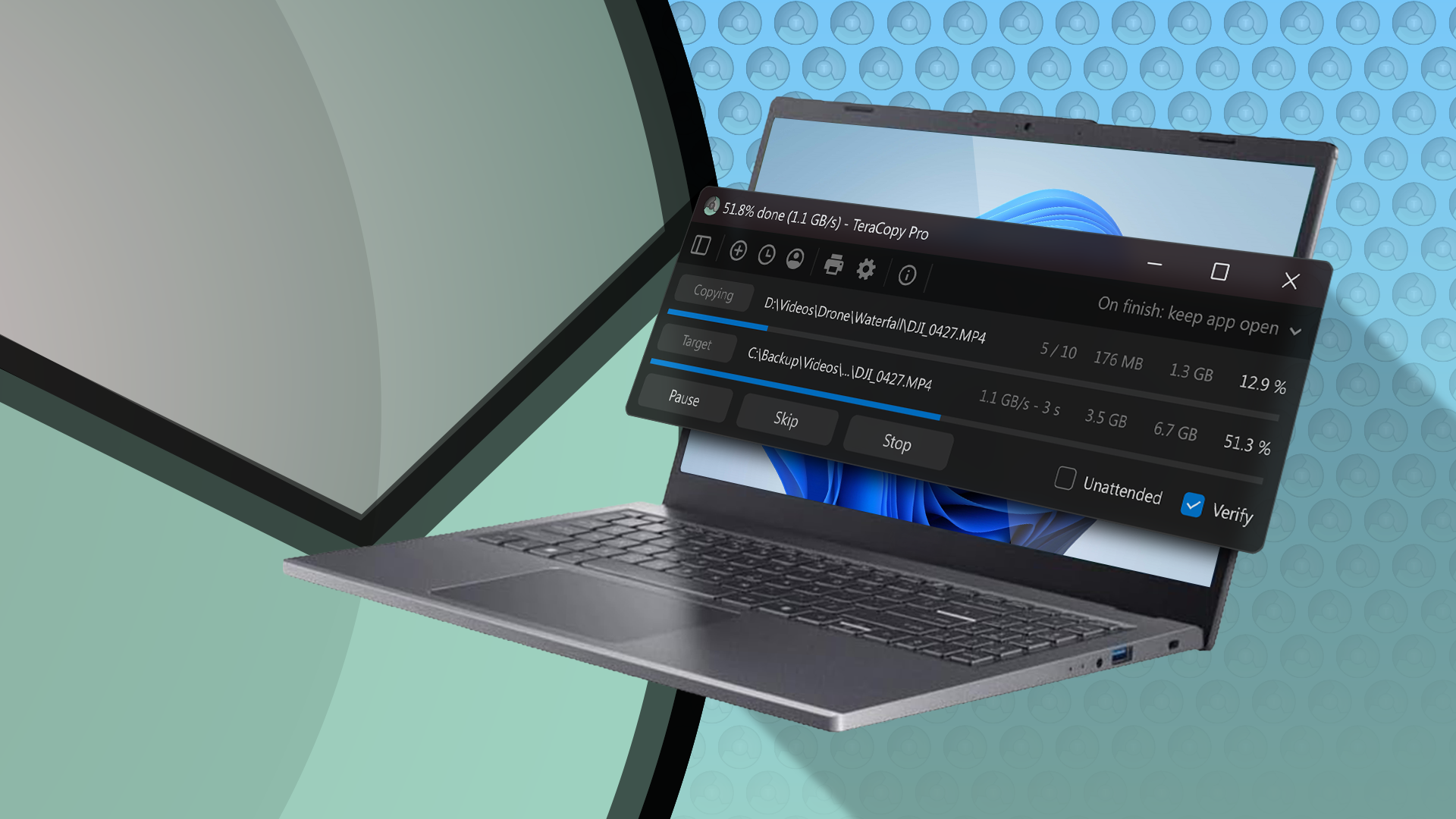
TeraCopy: The File Transfer Tool Still Going Strong
If you remember TeraCopy from the days of Windows 7, you’re not alone. This file transfer utility was a go-to for many, making moves between directories smoother than Windows Explorer. What’s surprising is that TeraCopy hasn’t vanished—it’s still relevant, and I tend to prefer it even in Windows 11.
Speed Comparison: TeraCopy vs. Windows 11
Many users switch from the standard file transfer in Windows 11 to TeraCopy mainly to speed things up. TeraCopy does deliver on that front—but only under certain conditions. When transferring a small amount of data, you might find that TeraCopy and Windows 11 both average around 35 MB/s for a 3 GB transfer.
However, the differences become more apparent with larger files. For instance, while moving a hefty 100 GB folder—specifically the Borderlands 3 installation—I noticed TeraCopy consistently hovered around 45 MB/s. In contrast, the Windows transfer rate peaked at 43 MB/s, often dropping to as low as 5 MB/s during the transfer. While the speed difference may seem minor, over longer transfers, it translates to a significant time savings.
For example, if TeraCopy maintains a rate of 45 MB/s, it’ll take about 38 minutes to complete the 100 GB transfer. Meanwhile, Windows would take roughly 40 minutes at 43 MB/s. When handling even larger data moves, these differences can accumulate to hours of additional wait time.
A Buffer Against Mistakes
If you’ve used Windows for a while, you might have experienced the frustration of an interrupted file transfer—like when an external drive suddenly disconnects. Unlike Windows, TeraCopy intelligently pauses the transfer rather than canceling it altogether, allowing you to pick up right where you left off once the drive is reconnected.
Similarly, if you’re prone to accidentally dragging and dropping files, TeraCopy has your back. It prompts for confirmation before executing any transfers, which might add an extra step but also prevents unwanted mishaps. If this seems cumbersome, you can easily disable the confirmation prompt in the settings.
Efficient Transfer Queueing
Windows lets you copy files to multiple locations simultaneously, but this can lead to system strain, especially with larger files. When your system gets overloaded, performance can noticeably lag. TeraCopy sidesteps this issue by queuing file transfers. It processes one file at a time, reducing the risk of slowdowns. While this queuing method is generally advantageous for larger files, copying several small files at once may be quicker with Windows.
Tracking Transfers
One standout feature of TeraCopy is its ability to maintain a log of all your file transfers. This record provides detailed information, such as where the files came from and where they went, along with any errors that occurred. TeraCopy also features an Auto Scroll option that skips over corrupt files while continuing the transfer, which is extremely useful for overnight file operations. If a problem occurs, TeraCopy vanishes the hassle of waiting for your input, moving on to the next file automatically.
Are There Any Drawbacks?
No application is without its flaws, and TeraCopy is no exception. While it clearly outperforms the native Windows copy utility in several areas, the interface can be a bit overwhelming for new users. After using TeraCopy for nearly a decade, I find it intuitive, but newcomers might find themselves lost in its range of advanced options.
For instance, executing a basic copy requires selecting both a source and a target folder, which can seem tedious. Advanced features like file verification and checksum comparisons may be appealing to power users but could be intimidating for someone just looking to copy files.
Pricing and Pro Features
TeraCopy also offers a premium version priced at $29.95. However, unless you plan to utilize its advanced filtering options or other pro features, it may not be worth the investment. For basic file-copying needs, the free version remains robust and effective.
In conclusion, TeraCopy has proven itself a valuable tool for file management—even years after its inception. While it’s not without its quirks, if you frequently transfer large amounts of data, it could very well streamline your workflow.