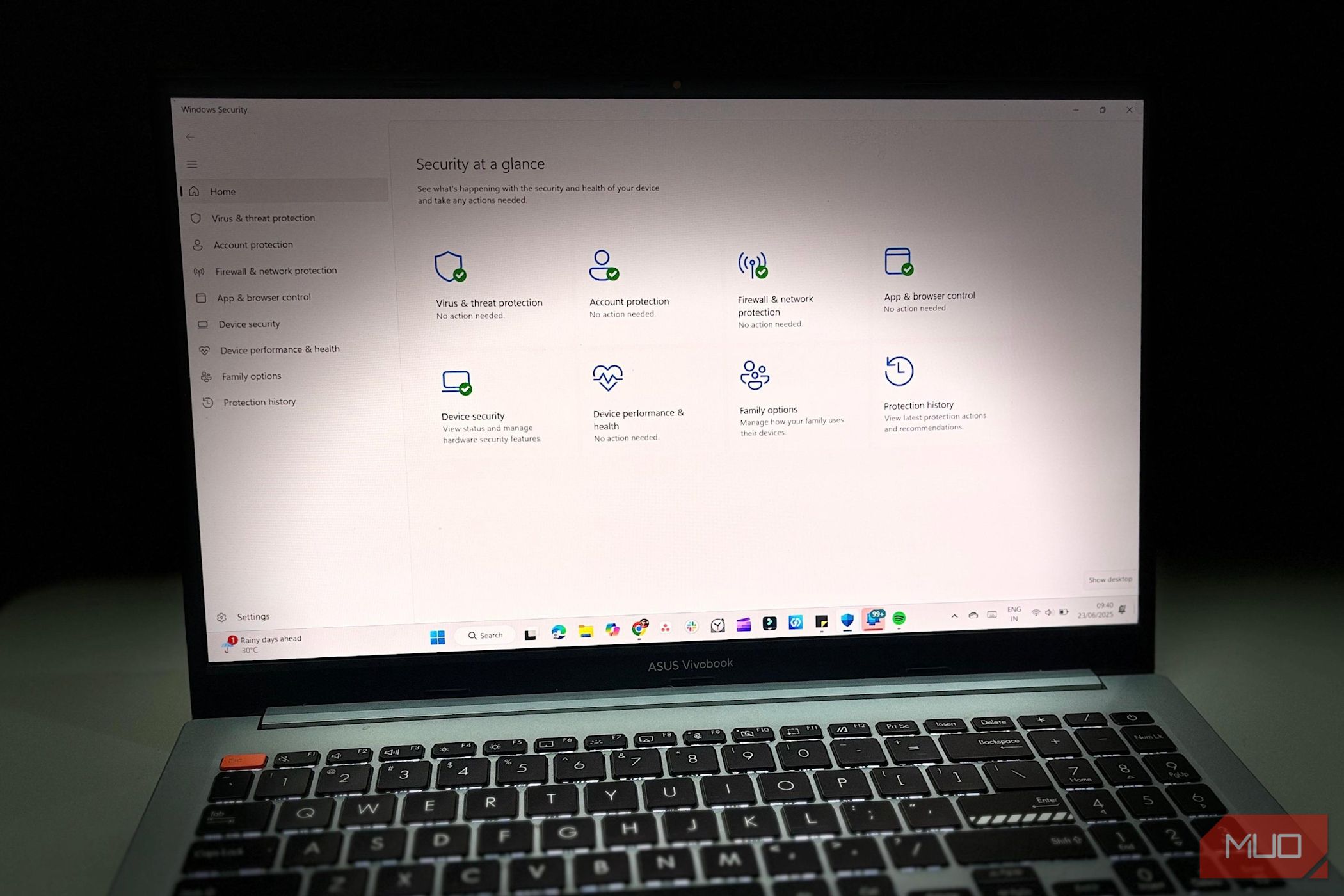
Unlocking the Power of Windows Security: Protecting Your PC Beyond Basic Antivirus
Windows Security offers much more than standard virus protection. From defending against phishing attacks to blocking ransomware, its features work to keep your system safe—but they can be a bit tricky to find. Let’s explore how to harness these tools for maximum security.
Safeguarding Your Files Against Ransomware
Opening unknown attachments or downloading files poses risks, especially with ransomware capable of locking your files in an instant. Fortunately, Windows comes equipped with Controlled Folder Access, a feature that shields your critical folders from unauthorized changes.
When activated, this setting blocks untrusted applications from altering protected locations like your Documents, Pictures, and Desktop. You can also include other directories critical to you—think work documents, financial records, or files on an external drive.
To enable this feature, navigate to Windows Security, click on Virus & threat protection, and then select Manage ransomware protection. Just flip the switch for Controlled folder access, and you’re good to go.
If a trusted app gets blocked, Windows doesn’t always notify you. Check the Protection history to see any blocked attempts and decide which apps to allow. If a familiar application, such as your video editor, is having trouble, you can whitelist it to avoid future interruptions. After you set this up, the protection operates silently in the background, ready to thwart any potential threats without further input from you.
Automatic Blocking of Malicious Apps
Not all threats present themselves openly; some seem harmless at first glance. A seemingly useful file could install malware or trackers, while phishing sites can easily deceive you into giving away personal information.
Windows Security uses reputation-based protection to combat these risks, leveraging Microsoft’s real-time threat intelligence to automatically block untrustworthy applications, suspicious downloads, and deceptive sites.
To activate this, go to Windows Security and navigate to App & browser control. Click on Reputation-based protection settings, and enable all options: Check apps and files, SmartScreen for Microsoft Edge, Potentially unwanted app blocking, and Phishing protection.
After this feature is turned on, Windows will discreetly monitor your activities. If a file or site appears risky, you’ll receive a warning before proceeding. You still have the option to approve trusted apps, but these safeguards help prevent costly mistakes.
Tackling Stubborn Threats with Offline Scans
Some malware is sophisticated enough to elude typical scans, hiding deep within your system and causing damage before detection. In such cases, a standard scan may not suffice.
That’s where the Offline Scan comes into play. This feature conducts a more thorough check before Windows boots up, preventing hidden threats from activating. To initiate an Offline Scan, open Windows Security, proceed to Virus & threat protection, and select Scan options.
Choose Microsoft Defender Antivirus (offline scan) and click Scan now. Your PC will restart to run the scan in a clean environment; it typically takes about 15 minutes. Once complete, check the Protection history to see if any threats were discovered or removed.
Enhancing Memory Integrity for Added Security
Your system memory handles sensitive tasks, making it a prime target for malware. If an attacker compromises this level, they can manipulate critical processes or even control your machine without accessing personal files.
Memory integrity acts as a security checkpoint for your system. By creating a virtualized protected environment, it keeps critical processes insulated from untrusted actions.
To enable Memory integrity, go to Windows Security > Device security > Core isolation details. If it’s turned off, toggle it on, and you might need to restart your PC. If the toggle doesn’t work, it could be due to outdated drivers; consider updating them to resolve the issue.
Strengthening Programs with Exploit Protection
Unlike standard threats that ask for permission, exploits infiltrate systems by exploiting vulnerabilities in applications.
Exploit protection works by reinforcing your software’s weak points, monitoring for known attack methods, and stopping them before they can compromise your system.
You’ll find this feature within the App & browser control section of Windows Security. Click on Exploit protection settings at the bottom, and you’ll see two sections: System settings (enabled by default) and Program settings, where you can customize rules for individual applications.
To secure a specific app, navigate to the Program settings tab, add the app or its executable file, and enable advanced defenses.
Resolving TPM Security Problems
The Trusted Platform Module (TPM) is a small yet critical chip that handles essential security tasks like storing encryption keys. After a significant update or hardware change, TPM issues can arise, leading to errors with features like BitLocker or Windows Hello.
Most TPM problems can be resolved by resetting it through Windows Security. This action clears stored data and reinitializes the chip, which often resolves issues without losing personal files.
To reset the TPM, go to Windows Security > Device security, and then click on Security processor details. Select Security processor troubleshooting, choose a reason for the reset, and click Clear TPM. Your PC will restart to complete the process.
If you don’t see any TPM options, you might need to enable it in your computer’s BIOS first. Look for settings labeled TPM, fTPM, or PTT.
Monitoring Family Activity
The Family options panel in Windows Security integrates with Microsoft Family Safety, giving you a centralized space to manage boundaries and monitor device usage.
Here, you can regulate screen time, restrict certain apps, filter web content, and apply rules for all family members. This feature is particularly beneficial for guiding children’s usage and shielding them from unsafe content.
To access these settings, go to Windows Security, scroll to Family options, and click on View family settings. This will launch the Microsoft Family Safety dashboard in your web browser, where you can create child accounts, set restrictions, and monitor activity reports.
These settings stay connected to your child’s Microsoft account and transfer to any Windows device they use. If they attempt to access blocked content, you’ll receive a notification, allowing you to approve or deny the request.
These powerful features hidden within Windows Security can significantly enhance your device’s protection. If you haven’t explored them yet, now’s the perfect time to start securing your system.