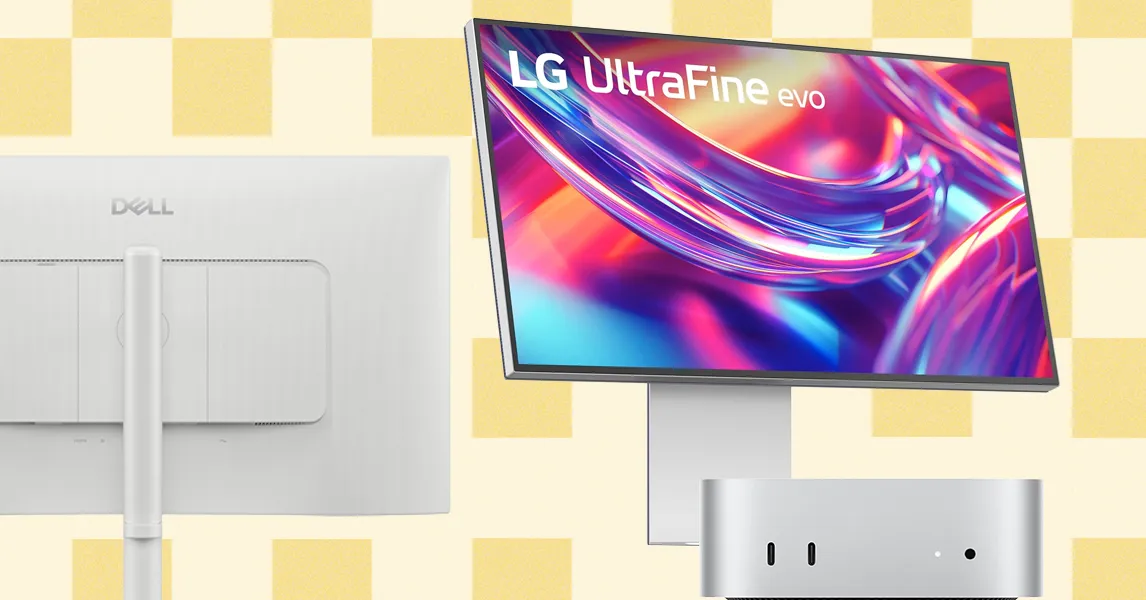
Just about any monitor can work with a Mac Mini—it doesn’t have to be made by Apple or carry any official certification. While there’s an argument for using a budget-friendly 1080p monitor with the Mac Mini, most users will likely prefer something more upscale. A great option is the Dell 27 Plus 4K, which is affordable yet offers a premium experience. Here are four important factors to keep in mind when shopping for a top-notch monitor to pair with your Mac Mini.
Size and Resolution
Monitors around 27-inch and 32-inch are quite common these days, but there are larger models available too. If you like a wider viewing experience, you might want to consider a 34-inch ultrawide monitor with a 21:9 aspect ratio and a curved screen. When it comes to Apple, resolution is crucial. The company invests significantly in high pixel density for its screens, even for entry-level products like the MacBook Air. Pixel density is key to achieving sharpness; you’ll need more pixels spread across a larger external monitor. For optimal clarity, aim for a monitor with at least a 4K resolution, and consider 5K or 6K if you opt for a 32-inch screen. Refresh rate is another factor—look for a monitor with a 120 Hz refresh rate, similar to the MacBook Pro, for smoother animations, especially in gaming.
Adjustability
Apple’s monitors and iMacs are not especially adjustable; many lack any adjustability at all, and those that do can be pricey—like the Pro Display XDR, which charges an additional $1,000 for a stand that allows for height adjustments. For better ergonomics, the top of your monitor should be as close to eye level as possible, though this varies depending on your height. If a monitor lacks height adjustability, you’ll need to invest in a separate stand or arm. Beyond height, many monitors come with stands that can swivel, tilt, or rotate, which is essential for using multiple monitors or even positioning a second monitor vertically, a trend that’s gaining popularity.
Ports
Even the most affordable monitors generally include HDMI as a connection option, which is perfect for plugging directly into the back of the Mac Mini. Some monitors also come with USB-C ports that support display connections, allowing you to hook up to one of the Mac Mini’s Thunderbolt ports. The M4 Mac Mini features three Thunderbolt 4 ports, HDMI, and an Ethernet jack. The M4 Pro model has similar ports but with Thunderbolt 5 instead of 4. If you plan on connecting more than one external monitor, you’ll definitely need to use at least one of these Thunderbolt ports. Many monitors also include additional ports like USB-A, which can be quite helpful, as the Mac Mini doesn’t have any built-in.
Image Quality
Apple emphasizes image quality across its Macs, so when selecting a monitor for your Mac Mini, you’ll want something that lives up to that standard. This is particularly vital for content creators, photographers, and designers. Focus on factors like brightness, color accuracy, color coverage, and contrast. While some IPS displays provide decent quality, mini-LED or OLED screens will deliver superior image performance. These technologies also achieve significantly higher peak brightness in HDR content, enhancing your gaming and viewing experiences.