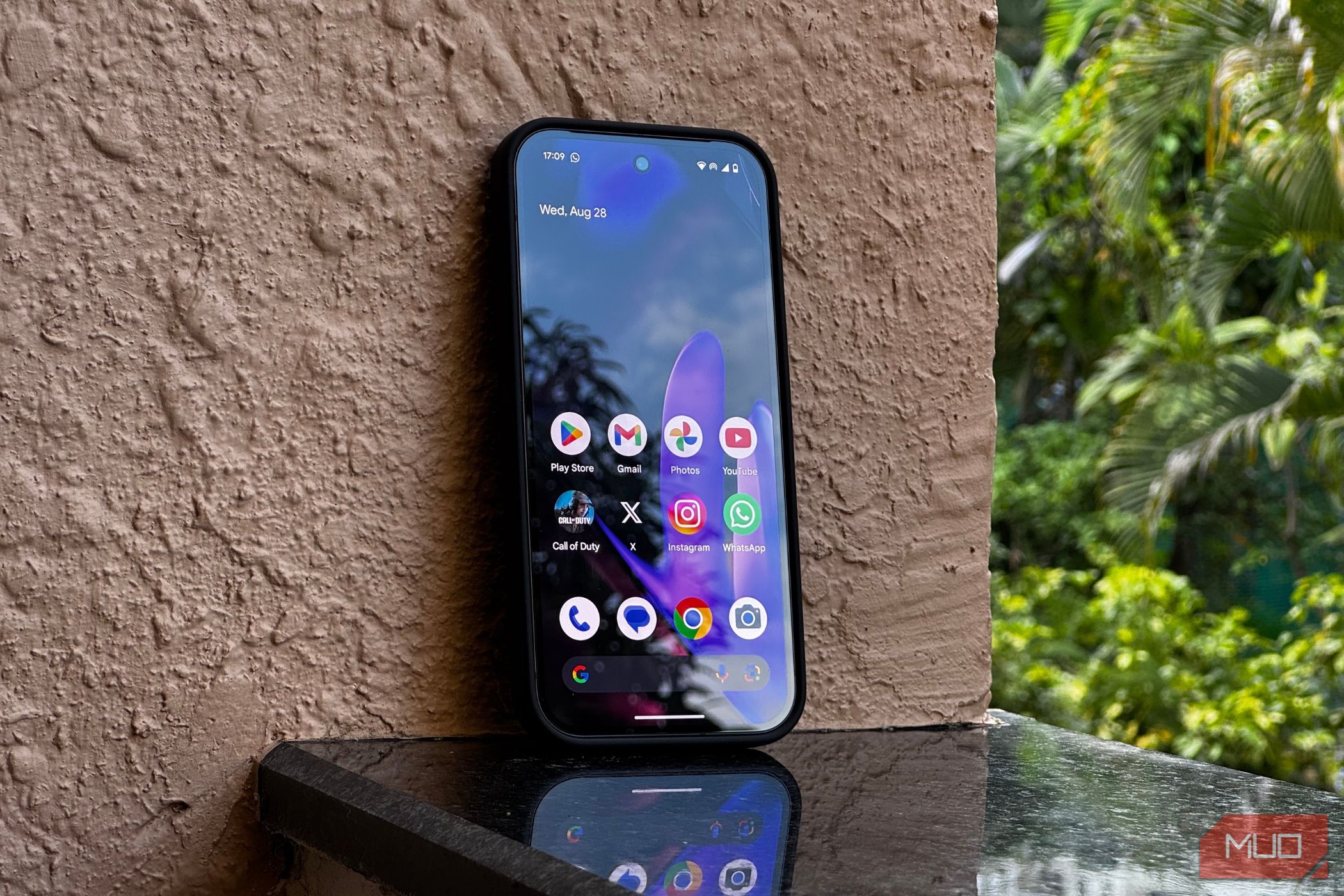
Out of the box, Android devices often allow extensive data collection, but luckily, a few quick adjustments can enhance your privacy without impacting your phone’s functionality.
1. Conceal Notifications on the Lock Screen
When notifications appear on your lock screen, they can unwittingly expose private information, revealing the content of messages, emails, and alerts to anyone in view. To safeguard your data, navigate to Settings > Notifications > Lock Screen notifications and opt for Hide content. For tailored privacy, individual app settings can also be adjusted within this menu. This configuration allows you to receive notifications without exposing sensitive details until your phone is unlocked.
2. Utilize App Pinning or Guest Mode
Handing your phone to someone else can be nerve-wracking, especially if they start navigating through your apps. Android’s app pinning feature allows you to lock the device to a single app, preventing access to other content until you manually unlock it. To enable app pinning, go to Settings > Security > More security settings > App pinning and toggle on both Use app pinning and Ask for PIN before unpinning. After activation, open the desired app, hit the Recent Apps button, click on the app icon, and select Pin.
If app pinning seems restrictive, consider using Guest Mode to allow temporary access with limited capabilities. This feature is typically found under Settings > System > Multiple Users, where you can create a guest account to limit what the user can access. Alternatively, you can set up a separate profile for children, allowing them to customize their experience without affecting your personal settings.
3. Opt Out of Diagnostics Data Sending
By default, Android devices automatically send diagnostic and usage data to Google to enhance the operating system. This data can entail insights into how you utilize your device, including app interactions and network information. If you’re uncomfortable with this ongoing data transmission, you can opt out by navigating to Settings > Security and Privacy > More privacy settings > Usage & diagnostics and turning the option off.
Additionally, many phone manufacturers collect their diagnostics. It’s prudent to explore specific privacy settings provided by your manufacturer to disable any unnecessary data collection features.
4. Disable Ad Tracking
Your Android device is assigned a unique advertising ID that allows apps and advertisers to monitor your behavior, creating a digital footprint that influences targeted advertising. You can minimize this intrusion by going to Settings > Security and Privacy > More privacy settings > Ads > Ad privacy and deactivating all tracking options. Afterwards, return to the previous menu and select Delete advertising ID. Although this won’t eliminate ads, it will lessen their relevance to your interests.
5. Review Google Account Settings
Your Android phone closely integrates with your Google account, which aggregates significant personal data such as search history, location tracking, voice commands, and YouTube activity. To reduce data collection, visit myaccount.google.com and click on Data & privacy. Scroll to History Settings and disable options including Web & App Activity, Timeline, and YouTube History. These settings prevent Google from storing a detailed history of your activities.
6. Audit App Permissions
In the excitement of trying out new applications, it’s easy to overlook the permissions they request. Often, these apps request access to sensitive data, such as your location, camera, or contacts, even when it’s not necessary for their functionality. It’s advisable to review permissions periodically. Access this feature by going to Settings > Security and Privacy > Permissions used in last 24 hours to see which apps have accessed your camera, microphone, and location. The drop-down menu allows you to expand this view for the last week.
7. Monitor Clipboard Access
Your clipboard temporarily stores sensitive information like passwords and credit card numbers. Some applications can access this data without your knowledge, which raises privacy concerns. To combat this, Android offers an alert feature notifying you when an app accesses the clipboard. Navigate to Settings > Security and Privacy > Controls and alerts, and enable Alert when clipboard accessed. This setting will keep you informed about any unauthorized access.
Conclusion
While managing your phone’s settings may seem tedious, it is crucial to protect your privacy. Android devices are designed more for convenience than confidentiality, but with a few adjustments, you can regain control over your personal information and enhance your peace of mind. Taking these steps not only protects your data but also fosters a more secure and personalized experience on your device.