Switching to a new PC can often be a cumbersome task, especially when relying on external storage solutions for data transfer. Microsoft is currently testing a novel wireless transfer feature aimed at streamlining the process of transitioning between Windows PCs.
### Simplified Data Transfer Between PCs
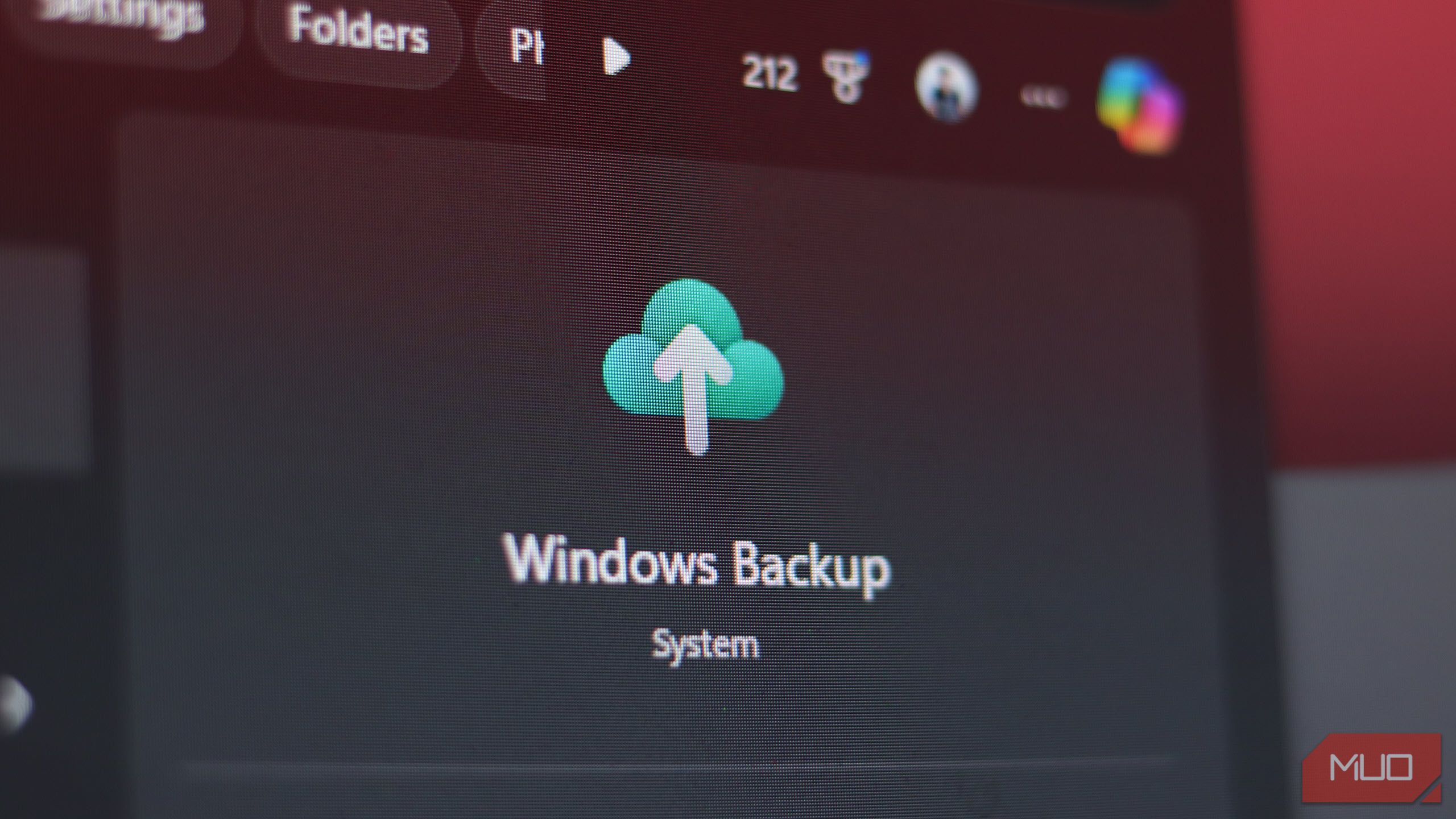
Windows includes a native backup application that facilitates the restoration of files and settings from an older system through OneDrive. However, users have noted limitations; for instance, the usefulness of this feature is contingent on sufficient OneDrive storage, making it primarily applicable for migrating Windows settings.
Recent observations by Phantom of Earth on X indicate the introduction of a new function within the Windows Backup app labeled “Transfer files to a new PC.” Distinct from traditional cloud data transfers, this feature appears to implement a wireless data transfer mechanism enabling connectivity between two Windows PCs on the same Wi-Fi network. During the transfer initiation, the originating PC provides a six-digit passcode, which must be entered on the receiving PC to establish the connection.
This feature’s description suggests that it will be capable of transferring not only files but also applications, settings, and credentials over the network. In contrast, the existing Windows Backup app focuses solely on backing up files stored in the Desktop, Documents, and Pictures folders to OneDrive, while remembering installed applications, preferences for pinned apps, account details, Wi-Fi passwords, and other credentials, including Windows settings and user preferences.
If successfully implemented, this wireless transfer feature could significantly enhance the experience for users migrating from an older PC to a newer model. Currently, even with comprehensive backups using Windows Backup, users must manually reinstall all applications following the device switch. A common alternative for replicating a Windows installation is either to physically transfer the storage drive between computers or to clone the existing drive.
### Historical Context of Windows File Transfer Tools
Windows has previously offered a file transfer utility termed Windows Easy Transfer, introduced in Windows XP Service Pack 2 and included until Windows 8.1. This application permitted users to migrate data between two PCs using a network connection, external storage options such as USB drives or CDs/DVDs, or a specialized USB cable designed to facilitate direct data transfers.
### Evaluating Microsoft’s Track Record on Feature Releases
While the addition of this feature may be promising, there are concerns regarding the reliability of Nearby Share, Windows 11’s built-in wireless transfer tool, which has experienced its fair share of issues. Thus, while optimism exists, caution is warranted until this feature becomes part of a stable release in Windows 11.
Historically, Microsoft has encountered challenges in delivering features once they have been identified during testing phases. This track record raises questions about whether the newly observed Windows backup feature will ultimately make its way into stable versions.
### The Context of Upgrading to Windows 11
With Windows 10 nearing the end of its support lifecycle, the introduction of this transfer feature could provide essential assistance for users transitioning to Windows 11. Microsoft is actively encouraging users to upgrade to its latest operating system, especially in light of increasing advisories directed at Windows 10 users.
In conclusion, while the wireless transfer feature under testing promises a more straightforward migration path for users, caution is advisable, given Microsoft’s inconsistent history with feature rollouts. The anticipated ease in transferring data, applications, and settings could significantly enhance user experience, provided the feature reaches stable release with dependable performance.