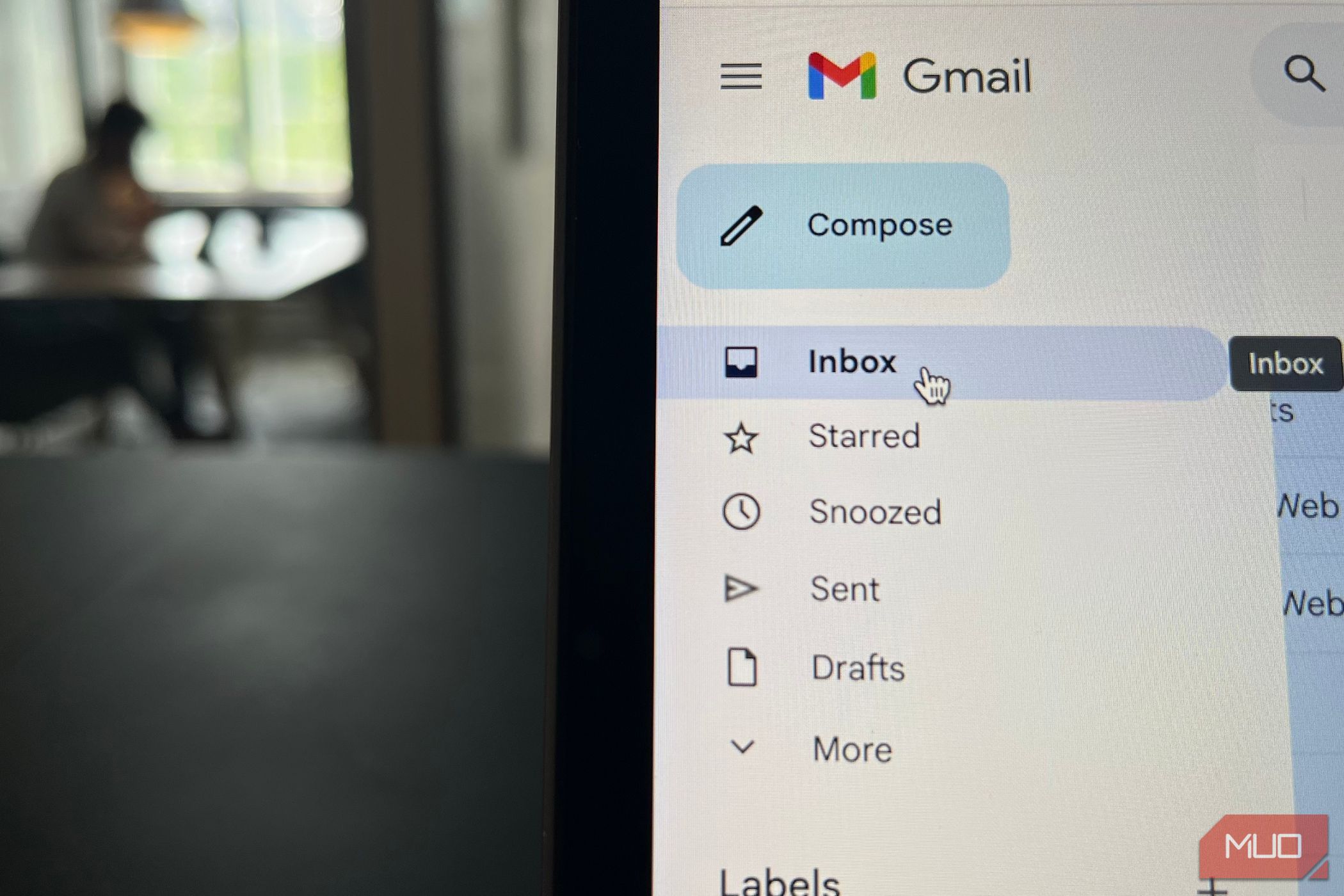
Achieving Inbox Zero: Simplified Email Management Strategies
Managing emails has long been perceived as a daunting task for many users. Despite the myriad applications and productivity hacks available, the challenge of maintaining an organized inbox persists. However, simplifying email habits can make achieving "Inbox Zero" a more manageable goal.
Unsubscribing from Unwanted Newsletters
While newsletters can serve as valuable sources of information, many often do not add much benefit. In reality, countless newsletters seem to exist simply to meet marketing metrics rather than to provide meaningful content. Consequently, identifying and unsubscribing from non-essential newsletters can streamline your inbox significantly. A selective approach allowed me to unsubscribe from almost all newsletters I no longer anticipated—mainly keeping a handful that I found worthwhile. This proactive measure proved beneficial, as I have never found the need to resubscribe to any newsletter since then.
When making online purchases, I consciously check for any newsletters and swiftly unsubscribe after receiving the first message. Furthermore, I diligently uncheck the box for email promotions whenever possible. In platforms like Gmail, unsubscribing from unwanted newsletters has never been easier.
Batching Email Checks
Another key strategy in my journey to achieving Inbox Zero was modifying my schedule regarding when I check emails. Previously, periodic checks throughout the hour would spark constant anxiety over the need to respond to every incoming message. In most cases, immediate replies were unnecessary, but this habitual checking created undue stress.
Now, I reserve specific times during the day to check my emails—ideally just once daily. Moreover, I’ve taken further steps to enhance boundaries by signing out of email applications on my phone. Checking messages at the end of the day allows me to efficiently manage my time, as I am compelled to log off immediately after addressing emails.
Utilizing Mail Filters
Mail filters provide an effective means to manage and categorize emails automatically. For instance, while using Outlook, I would create specific rules that enabled me to filter out unwelcome emails before they cluttered my inbox.
Often, unsolicited proposals for services like web design would arrive uninvited. Recognizing their valuelessness, I opted to discard them outright. Setting up filters in Outlook involves navigating to Settings, creating rules, and saving them for automatic execution.
Gmail also offers filtering capabilities; by accessing the search bar icon, users can input keywords to determine the visibility of certain emails.
Blocking Unwanted Senders
Despite the utility of filters, unwanted emails sometimes sneak through, especially if they lack identifiable keywords. In such scenarios, blocking the sender becomes an ideal solution. This action often routes their future messages to the spam folder, minimizing the likelihood of encountering similar content. Additionally, I take steps to block newsletters that lack unsubscribe options.
Implementing Labels and Folders
To further mitigate the overwhelming nature of my inbox, I employed the use of labels and folders. By organizing emails into distinct categories—such as "Important Messages," "Lower-Priority," and "Useful Emails"—I can manage and navigate my correspondence more effectively.
After sorting through emails, I take a moment to verify that each message is appropriately categorized before addressing necessary actions. This system drastically simplifies overall inbox management.
Practicing Selective Response Etiquette
Being deliberate about responses is essential to maintaining focus. The majority of emails require little urgency, and many do not necessitate a reply at all. To determine whether to respond, I ask myself a few guiding questions:
- Will ignoring this email result in a significant issue?
- Will my response create more clutter than it resolves?
- Does replying enhance my overall experience or productivity?
If two out of three responses are negative, I choose not to reply. I do not delete these messages immediately; rather, I recognize I can revisit them if needed later on.
Transforming Frequent Replies Into Templates
A significant portion of my incoming emails follows predictable patterns. To streamline my responses, I began employing templates for frequently sent messages. Utilizing tools like Notion, I can effortlessly access these templates whenever required, thereby avoiding unnecessary repetitive typing.
Correspondingly, Outlook also supports the creation of email templates, providing various methods to streamline frequently sent communications.
Starred Messages and Deleting the Rest
One useful feature of Gmail is the "Starred" functionality, which allows for easy tracking of important emails. Occasionally, I monitor my inbox without immediate responses, particularly when I need time to process certain communications. By starring these important messages, I can revisit them later while keeping them marked as unread to avoid losing track.
Adjusting Maximum Page Size
The default view in Gmail presents 50 emails per page, which can at times feel overwhelming. To simplify, I opted to display a smaller amount, such as 15 emails at a time. This customization makes it easier to manage correspondence and prevents a cluttered view when accessing emails.
Outlook similarly offers an array of customization tools that enhance inbox organization, such as sorting messages based on urgency.
Conclusion: Proactive Steps Towards Inbox Zero
Achieving Inbox Zero involves a blend of proactive strategies and personalized adjustments. While reducing the volume of incoming emails plays a crucial role, utilizing organization techniques like labeling further streamlines communication management. By implementing these methods, users can cultivate a smoother and more productive email experience, transforming the often-overwhelming task of inbox management into a straightforward routine.