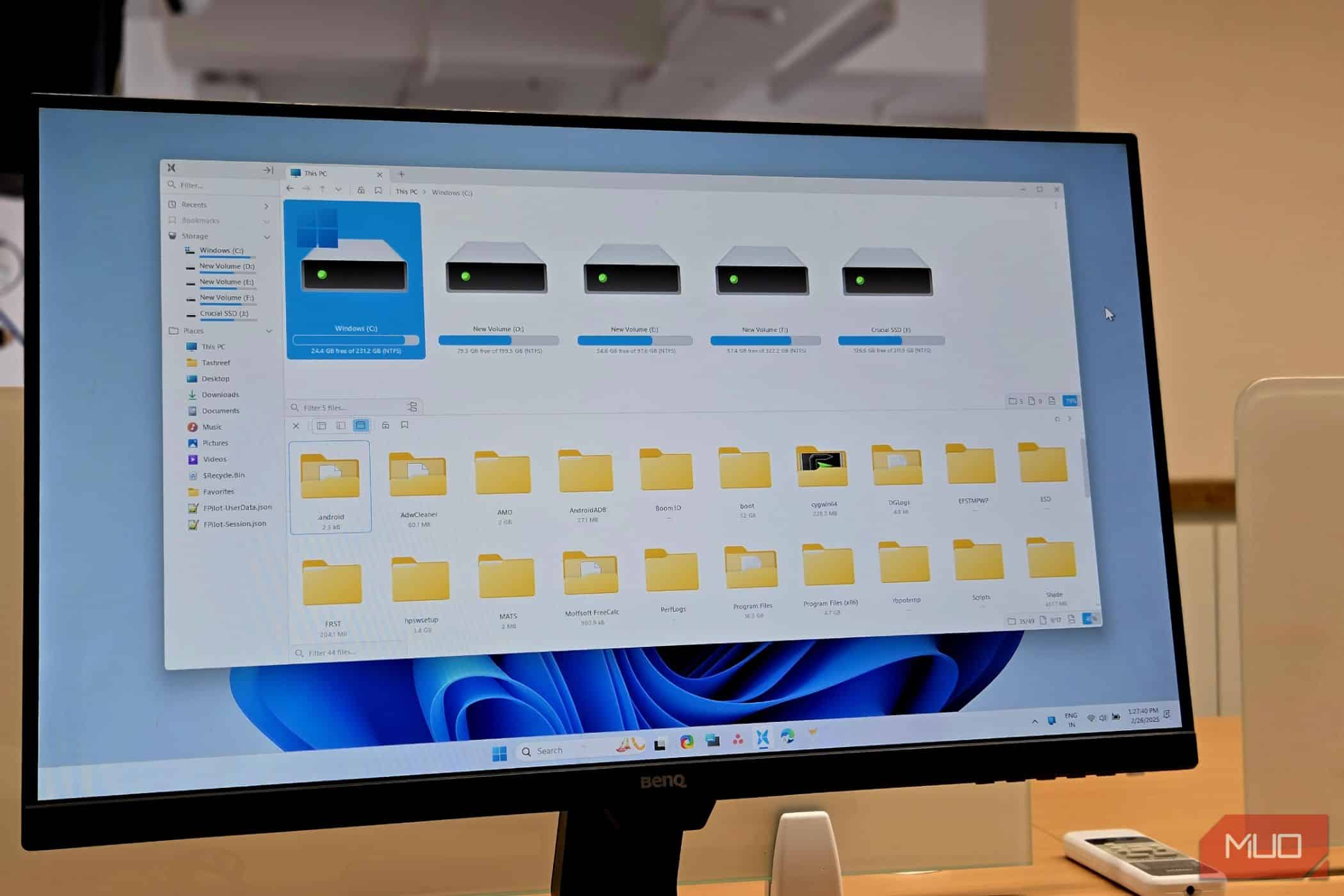
Enhance Your Windows File Management with These Free Tools
While Windows File Explorer gets the job done, it often falls short—lacking quick previews, efficient cloud access, and seamless bulk operations. Fortunately, several free add-ons can streamline your file management experience. Here are six must-have tools to supercharge your workflow.
1. Listary
For years, I struggled with ineffective search options in File Explorer until I discovered Everything Search, known for its speed. However, I recently found Listary, which takes file searching to the next level.
Unlike Everything, Listary integrates directly into File Explorer and any dialog box in Windows. This means you can instantly jump to any file or folder just by typing its name, cutting down on unnecessary navigation. Activate Listary’s quick launcher with a double press of the Ctrl key, and you’ll be able to see search results almost instantly.
The real game-changer is its quick switch feature. In a "Save As" dialog, you can type the name of a folder to jump straight there. Plus, Listary remembers your frequently accessed folders, making it easier to return to them. The fuzzy search feature is another boon; for instance, typing "budgt" will suggest "budget." It even acts as a launcher—type "calc," and you can open Calculator without the terminal.
Download: Listary (Free, $19.95 Pro)
2. TeraCopy
For those who often copy large files, Windows’ built-in file transfer can be frustrating. Issues like unreliable progress bars and problematic pauses make the process tedious. Here’s where TeraCopy comes into play.
This app replaces the default file transfer handler with a more sophisticated tool that shows real transfer speeds and estimated completion times. If a file fails to copy, TeraCopy skips the error and continues transferring the remaining files. Also, it can verify files post-transfer to ensure nothing gets corrupted along the way.
TeraCopy is free for personal use, but you’ll need a Pro license for business use. The Pro version offers additional features like secure file deletion.
Download: TeraCopy (Free, $29.95 Pro)
3. Mountain Duck
If you frequently juggle various cloud storage platforms, you know the struggle. Constantly switching between browser tabs or syncing entire folders can be a hassle. Mountain Duck simplifies that by integrating your cloud drives directly into File Explorer.
Once connected to services like Google Drive, Dropbox, or OneDrive, these drives act just like local storage. You can drag and drop files, edit documents live without downloading, and search across all your cloud services from one place. Plus, files are only downloaded when accessed, saving local storage.
This paid app comes with a 14-day free trial, which is perfect for testing its capabilities.
Download: Mountain Duck ($47, free trial available)
4. DropIt
If your Downloads folder turns into a chaotic mess, DropIt is your solution. This automation tool monitors specified folders and applies rules to automatically sort your files.
For instance, you can make DropIt move PDFs to your Documents folder and sort images by date. Setting up rules is straightforward—you simply specify what to look for and what actions to take (like moving, copying, or even uploading to the cloud). Once configured, DropIt works quietly in the background.
Download: DropIt (Free)
5. Quick Look
While Windows has a Preview Pane, it can be limited to basic file types. Quick Look enhances this by allowing you to preview any file instantly simply by pressing the spacebar.
This means you can check out PDFs, images, videos, and even ZIP files without opening multiple applications. You can even navigate through folders while previewing files. The utility also supports plugins, which can extend its functionality to accommodate markdown or 3D model previews.
Download: QuickLook (Free)
6. Bulk Rename Utility
For anyone needing advanced file renaming capabilities, Bulk Rename Utility is a lifesaver. While File Explorer can only add basic sequential numbers, this utility allows for complex renaming operations based on various parameters—like date or metadata.
You can take advantage of features such as inserting text at specific file positions or changing file extensions. The live preview option shows how your files will look after applying your changes. Additionally, it integrates with File Explorer’s right-click menu for easy access.
This tool is free for personal use, with a commercial license available if needed.
Download: Bulk Rename Utility (Free)
These tools are more than just enhancements; they’ve become essential parts of my workflow. Each one optimizes the limitations of Windows File Explorer, making file management a breeze. If you haven’t yet tried them, these free options are worth exploring!