Troubleshooting Your Smart TV’s Wi-Fi Connection
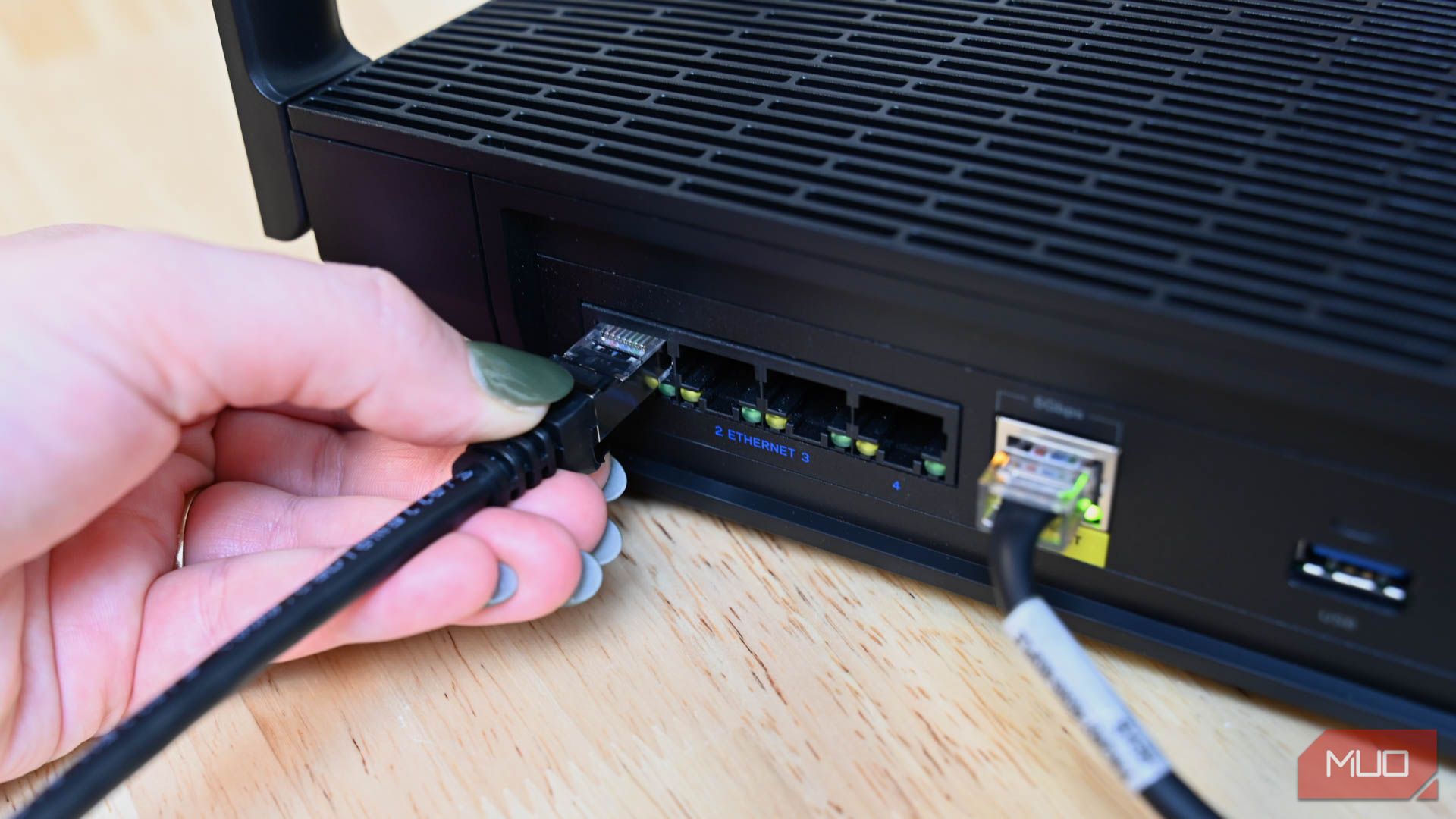
When I notice my smart TV struggling to connect to Wi-Fi, I’ve learned to shift my focus from the TV itself to the router. More often than not, it’s the root of the issue. While a simple reset might do the trick occasionally, resolving Wi-Fi problems for your smart TV typically demands a little more care.
Restart Your Router and Smart TV
Think of this as starting fresh. Restarting both your router and smart TV can eliminate any temporary files that might be affecting the connection. To do this, unplug both devices for about 60 seconds. Once you’ve reconnected your router, check your smart TV’s network settings. For instance, if you have a Vizio TV, you’ll find this in the "Network" section. Forget your home network completely and reconnect. This clean slate approach could be all you need.
After everything is back up and running, test out an app or stream some media to see if performance has improved. If you still experience issues, consider performing a factory reset on your smart TV. This option wipes all data, meaning you’ll have to log back into your streaming accounts, but it often fixes lingering connectivity problems.
Optimize Your Router’s Location
The positioning of your router can significantly impact your Wi-Fi signal, especially in homes with multiple rooms and thick walls. I discovered that relocating my router helped tremendously. When I set it up in a better spot and added a couple of Xfinity xFi Pods, my smart TV’s connection greatly improved.
For optimal results, position your router at the center of your home. If you’re using Wi-Fi extenders, place them evenly between the router and your devices to create a robust digital web that covers dark spots in your home. There are also DIY solutions if you’re feeling handy.
Adjust Your Smart TV’s DNS Settings
Your smart TV connects to the internet through a DNS server, which translates user-friendly URLs into the technical IP addresses required for data access. Typically, your Internet Service Provider (ISP) sets these DNS values, but they may not be the best for streaming. Changing your DNS settings can not only enhance Wi-Fi performance but also grant access to geo-restricted content.
Find the DNS options in your TV’s network settings and set your IP to “static.” You might want to use Cloudflare’s DNS server (1.1.1.1), which is known for its speed and security—there are many other options available, too.
Prioritize Your Smart TV in Router Settings
If your router has a Quality of Service (QoS) feature, consider marking your smart TV as a priority device. This will allocate more bandwidth to it, enhancing your streaming experience.
To access QoS settings, you’ll typically enter your router’s IP address into a web browser. From there, enable QoS, which might be under advanced network settings depending on the brand. Once activated, you can adjust the bandwidth specifically for your smart TV, allowing for smoother streaming, particularly for content in 4K resolution.
Create a Dedicated Network for Your Smart TV
For improved connectivity and better security, consider setting up a separate network just for your smart TV. This method allows you to manage device hierarchies more effectively.
You can create a guest network through your router settings, either via an app or by navigating to the router’s IP address in a web browser. This ensures that your smart TV has a dedicated line, reducing the chances of interference from other devices.
Even if your smart TV’s Wi-Fi issues turn out to be temporary, these adjustments are worth implementing as preventive measures. By fine-tuning your router settings and using dedicated networks, you can enhance your smart TV experience for seamless streaming.