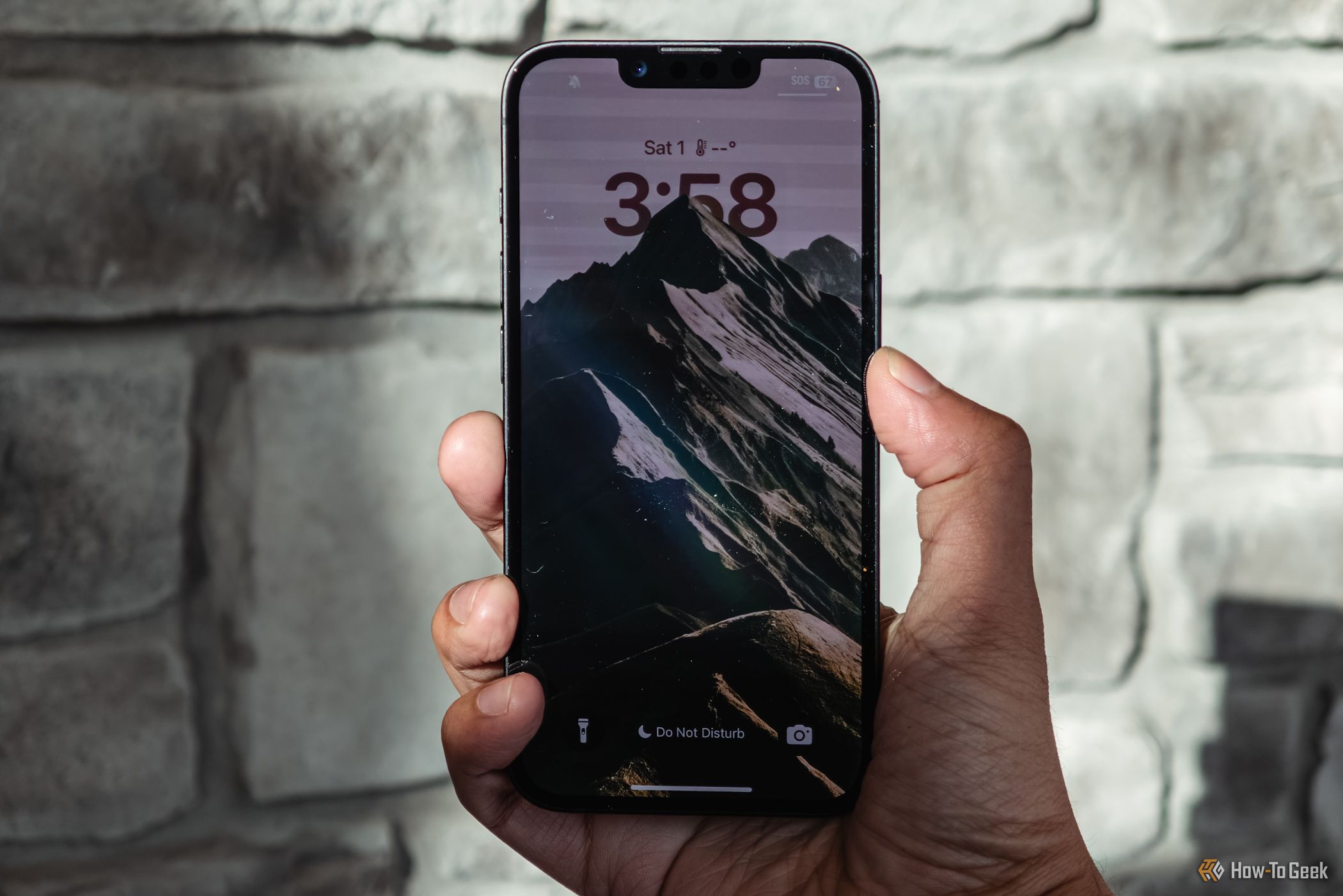
Over the years, Apple has rolled out various features aimed at helping iPhone users manage their privacy. While some are set up for ease of use, others need a little tweaking to maximize your data protection. Many of these settings are buried in the Settings app, making them easy to miss. Knowing what these features do, when to use them, and how to enable or disable them is vital for enhancing your privacy and security on your iPhone.
1. App Tracking Transparency (ATT)
App Tracking Transparency (ATT) empowers you to control your data. This feature mandates that third-party apps and websites ask for your permission before tracking your online activities across other platforms. To effectively prevent tracking, you’ll need to enable this feature on your device.
To do this, open the Settings app, then go to Privacy & Security > Tracking. Here, you’ll find a toggle labeled "Allow Apps to Request to Track." Enable it if it’s off. This will require apps to seek your permission before tracking your online movements.
A list of apps requesting tracking permission will appear. You can toggle permission on or off for each app as you see fit.
If you’d rather deny all apps the ability to request tracking, simply turn off "Allow Apps to Request to Track" and select "Ask Apps to Stop Tracking."
2. Advertising & Analytics Tracking
It’s not only third-party apps that track your online behavior. Apple also gathers data on your usage across its apps to serve personalized ads, along with diagnostic data that helps improve iOS and its applications. If you’d like to stop sharing this information, the process is straightforward.
Navigate to Settings > Privacy & Security, scroll down, and tap on Analytics & Improvements. There, you can toggle off "Share iPhone Analytics" and any other options you want to disable. This will prevent your iPhone from sharing analytics data with Apple.
Next, return to the previous menu and select Apple Advertising. Toggle off "Personalized Ads" to reduce the number of targeted ads you encounter going forward.
3. Managing Geotagging
If you’ve allowed the Camera app to access your location data, it will automatically geotag the photos and videos you capture. Geotagging includes information like latitude and longitude, which can compromise your privacy. Thankfully, you can easily remove this metadata before sharing.
To strip the location data, open the Photos app, select the image or video, and swipe up or tap the "i" icon for details. Click Adjust next to the location name and select No Location.
For those who prefer not to geotag any future photos, head to Settings > Privacy & Security > Location Services. Ensure Location Services is on, scroll to Camera, and select Never under Allow Location Access. However, it’s generally recommendable to just remove location data from individual images rather than turning off geotagging entirely.
4. Managing Location Services
You can also prevent other apps from accessing your location data, especially if you feel their requests are unwarranted.
To change these settings, go to Settings > Privacy & Security > Location Services. Make sure Location Services is enabled. Then, scroll through the list of installed apps, tapping each one to adjust its location permissions. Choose Never if you want to block access entirely, or opt for While Using the App for when you want to grant temporary access.
Keep in mind that some apps may not function properly without location access.
5. Significant Locations
The Significant Locations feature monitors and records your frequently visited places—like home and work—to offer personalized services like traffic predictions and relevant suggestions. By default, this feature is enabled, but if you find it intrusive, you can turn it off.
To disable it, navigate to Settings > Privacy & Security > Location Services. Ensure Location Services is on, scroll down to System Services, then select Significant Locations. After authenticating, switch off this feature and confirm by tapping Turn Off.
You can also clear your saved history by scrolling to the bottom and selecting Clear History.
6. Background App Refresh
Background App Refresh allows apps to update their content seamlessly, fetching new data while running in the background. While this feature is convenient, it can lead to higher data usage and drain your battery, as some apps may continue to send data while refreshing.
If you suspect an app might be sharing your data, disable background refreshing for it. Go to Settings > General > Background App Refresh and flip the toggle off beside any app you wish to restrict.
By tweaking these settings, you can significantly limit the information your iPhone collects and shares. However, remember that good digital habits also play a crucial role. Consider being cautious about the apps you install, using a reliable VPN, enabling tracking prevention in your browser, utilizing features like Hide My Email, and always keeping your device updated to enhance your privacy even further.