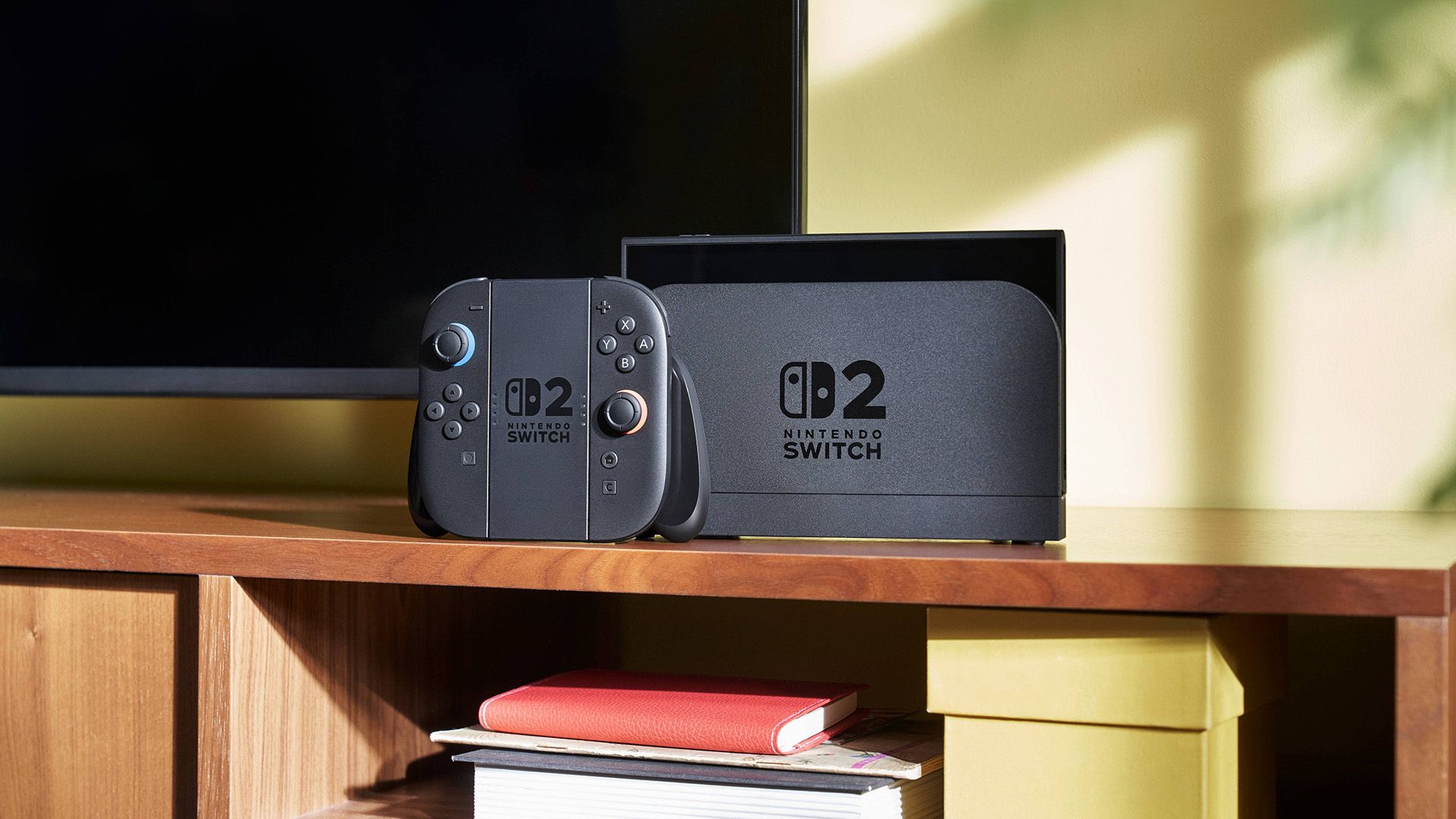
Got a Switch 2? The excitement of a new console can often lead to overlooking some of its most practical features. We’ve explored the system menus and the internet to compile a list of valuable tips and tricks for your new gaming device.
Local Game Sharing with GameShare
GameShare is Nintendo’s feature allowing users to share games between different Switch consoles. However, it’s important to note that this functionality is subject to certain conditions: the game must specifically support this feature, and only the Switch 2 can initiate the hosting process.
To use GameShare, begin by launching a compatible game (such as Clubhouse Games: 51 Worldwide Classics) on your Switch 2. Navigate to the “GameShare” option in the menu. On the receiving console, go to the Home screen to find the “GameShare” icon.
From there, select “Join GameShare” and accept the invitation to start sharing games, whether locally or during a session in GameChat.
Finding Missing Controllers
Have you misplaced your Joy-Con 2? The Switch 2 includes a convenient feature to help locate lost controllers. To activate this, ensure your console is powered on and press the physical power button. After that, tap the “Home” button three times on the touchscreen.
Next, select “Controllers” from the Home screen and choose the “Search for Controllers” option to emit a sound and vibrate the paired Joy-Con, making it easier to find.
Enhanced Performance for Original Switch Games
Even if you’re aware that the Switch 2 supports nearly all titles originally available on the original Switch—and that Nintendo is rolling out enhanced versions of popular titles—you might be surprised to learn that many unpatched games run more smoothly on the Switch 2 hardware.
For example, games like Dragon Quest Builders 2 can experience performance improvements of up to three times in taxing scenarios, while resolution-dependent titles, such as The Witcher 3, benefit from both visual enhancements and speed increases.
Compatibility with Existing Accessories
It’s beneficial to note that most accessories designed for the original Switch are compatible with the Switch 2. Notably, this includes the Nintendo Switch Pro Controller, so you won’t need to invest in a new version. However, keep in mind that this controller cannot wake the Switch 2 from sleep mode remotely.
Additionally, original Joy-Con can be used, though they cannot be charged directly on the Switch 2. Most retro controllers from systems such as the NES, SNES, and N64 are also supported. If you encounter connection issues, remember to update your controllers through the System Settings under Controllers & Accessories.
System Transfer Limited to Setup Phase
Transitioning from an original Switch, Switch Lite, or Switch OLED to the Switch 2 involves a straightforward process, with one exception. The System Transfer function that allows you to migrate user profiles, save data, settings, and downloaded software is only accessible during the initial setup phase of the Switch 2.
If this step is missed, the only option for transferring data will be limited to moving save data through System Settings > Data Management > Transfer Your Save Data. If you’ve bypassed this at setup, resetting your Switch 2 to factory settings will restore the option, but this action will erase all data on the device.
Managing Screenshots and Captures via Nintendo’s App
One notable improvement for Switch 2 users is the refined integration with the Nintendo Switch app, available for both iOS and Android. This app serves as a hub for managing your screenshots and video library more efficiently.
To enable this feature, go to System Settings > Data Management > Manage Screenshots and Videos > Upload Settings and activate the “Automatic Uploads” option. You can also upload items manually from the Home screen by selecting “Album,” choosing an item, and tapping “Upload to Smart Device.”
Your uploads will remain on the server for 30 days, providing ample time for sharing.
Switching Bluetooth Audio Devices Made Easy
One of the notable revisions is the ability to switch between previously paired Bluetooth audio devices directly from the Quick Menu, a feature that was absent on the original model. Pair your Bluetooth headphones through System Settings > Bluetooth Audio, then you can easily toggle to them mid-game by holding the Home button on the Joy-Con and selecting the device from the menu.
Filtering Wish Lists by Sale Items
Another user-friendly feature is the ability to filter your wish list for items currently on sale. This addition is part of a broader overhaul of the eShop, making it more convenient to find deals. To utilize this, launch the Nintendo eShop from your Home screen, select the “Wish List” tab, and check the “On Sale” box. You can add items to your wish list effortlessly using the “heart” icon next to game prices.
USB Mouse and Keyboard Support
The Switch 2 now supports the use of USB mice and keyboards, significantly expanding your gaming experience. Utilizing small optical sensors, the Joy-Cons can function similarly to a mouse within supported games and across the system interface. While USB mice may not operate on the Switch 2’s basic OS, they are effective within compatible games.
GameChat Enhancements with USB Cameras
Finally, the new GameChat feature allows for the connection of regular USB cameras. While HORI has introduced a specialized Piranha Plant USB-C camera, many standard USB webcams are compatible with the Switch 2, though an adapter may be necessary for USB-A connections. This feature enhances your streaming and gaming experience without requiring costly peripherals.
By exploring these tips, you can maximize your enjoyment of the Nintendo Switch 2 while also discovering useful capabilities that elevate your gaming experience.