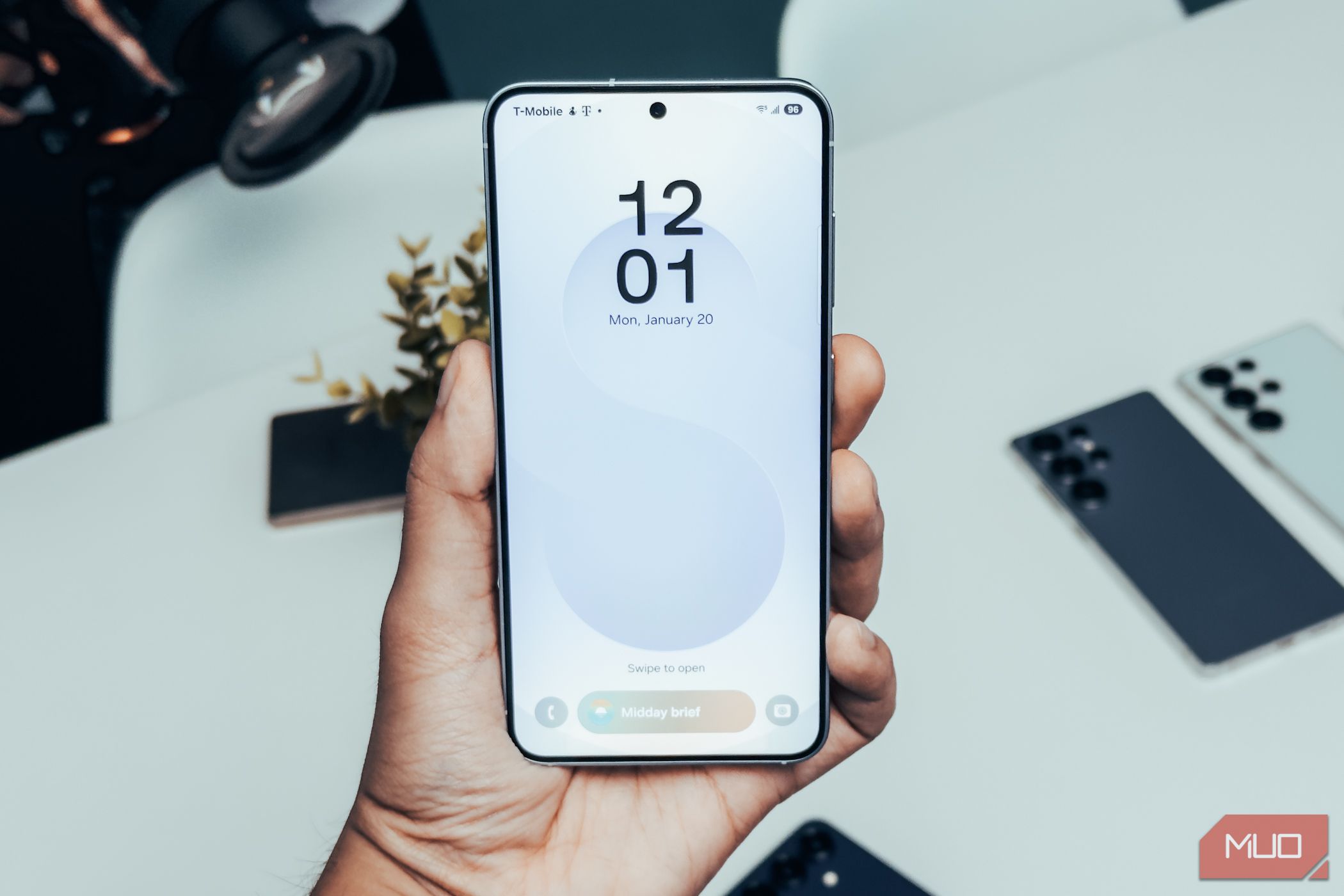
Maintenance Tips for Your Samsung Galaxy Device
Like any smartphone, your Samsung Galaxy may experience a slowdown as time passes. However, this decline can often be mitigated with simple maintenance practices. By adopting a few habits, you can ensure your device remains efficient and responsive for many years.
1. Uninstall Unused Applications
As you use your Samsung device, it is common to gather numerous apps and games, many of which you may not open for extended periods. Such unused applications can consume storage space, hinder performance, and even send unnecessary notifications. It is beneficial to routinely evaluate these apps and remove those that are infrequently used.
To simplify this task, the Google Play Store has a built-in feature that enables users to identify and uninstall rarely used apps easily:
- Open the Google Play Store on your device.
- Tap your profile icon located in the top right corner and select “Manage apps & device.”
- Navigate to the Manage tab.
- Choose the filter option and select “Least used.”
- Browse the list to identify apps you wish to delete.
- Select the corresponding checkboxes and tap the trash icon in the top right corner to uninstall.
If you prefer not to uninstall apps manually, you can enable the automatic archiving feature on your device. This setting will archive apps that haven’t been used for a while, keeping your app drawer tidy while allowing for easy restoration later.
2. Monthly Review of App Permissions
Even if you review permissions beforehand, it is advisable to reassess application permissions periodically. Many apps may update and request new access without your awareness over time. These requests can include sensitive permissions such as location, contacts, or microphone access.
To stay informed, navigate to: Settings > Security and Privacy > Permissions used in last 24 hours. Here, you can view a comprehensive overview of which apps have accessed critical features recently.
By examining each permission, you can determine if an app is requesting unnecessary access. For instance, if a flashlight application requests access to your call logs, you should consider revoking this permission or uninstalling the app entirely. Regular checks not only safeguard your personal data but can also improve your phone’s performance by minimizing background tasks that drain the battery and slow down operations.
3. Clear App Cache Regularly
Apps store temporary files, known as cache, which help them operate efficiently. However, excessive cached data can accumulate, leading to device slowdown, errors, or app crashes. Therefore, clearing app caches on a regular basis is crucial.
Samsung’s One UI provides an easy solution for clearing app caches:
- Open the Settings app on your device.
- Proceed to Device care > App cache.
- Select the apps for which you wish to clear the cache.
- Tap “Clear cache,” and then confirm your selection.
If the option to clear cache is not visible, it typically indicates that there isn’t a significant amount of data to remove, so you can revisit this task after a few days.
4. Stay Updated with Software and App Enhancements
Regular updates are vital for maintaining a smartphone in optimal condition. Software updates often introduce new features, security patches, bug fixes, and performance enhancements. By ensuring your device and applications are up to date, you are not only accessing the latest features but also enhancing overall functionality.
Typically, your phone will notify you when an update is available. You can also check for updates manually by going to Settings > Software Update. It’s equally important to update your applications regularly, as neglecting these updates can result in decreased performance and potential security vulnerabilities. To automate app updates:
- Open the Play Store and tap your profile icon in the top right corner.
- Select “Settings.”
- Expand “Network preferences.”
- Tap “Auto-update apps” and choose “Update over Wi-Fi only.”
5. Monitor Battery Health
The battery is a component that naturally deteriorates over time. Lithium-ion batteries lose capacity with each use, leading to shorter battery life as years pass. Replacement may become necessary, but identifying when to do so is straightforward.
You can check your battery health by:
- Downloading the Samsung Members app from the Play Store or Galaxy Store.
- Going to the Support tab.
- Accessing “Phone diagnostics” and selecting “Battery status” to perform a diagnosis.
The app will inform you if your battery is in "Good," "Normal," or "Weak" condition. If categorized as "Weak" or "Bad," it’s advisable to consider battery replacement for improved performance. The app also provides diagnostic tools for other hardware checks, ensuring that all components are functioning correctly.
6. Maintain a Clean Device
Regular cleaning of your Samsung phone may seem trivial, but it significantly influences the device’s performance. Accumulation of dust, dirt, and grime can cause issues such as muffled audio or inconsistent charging. A smudged camera lens can compromise photo quality as well.
Establish a routine of gently cleaning your device weekly using a soft microfiber cloth. For tougher stains, lightly dampen the cloth with water. If using a screen protector, consider replacing it periodically, as scratches and smudges can disrupt clarity. Additionally, refreshing the case from time to time can enhance the aesthetic appeal of your phone.
By adhering to these straightforward maintenance practices, you can prolong the lifespan of your Samsung device, ensuring it remains fast, efficient, and reliable well beyond the usual upgrade cycle.